Table of Contents
Your speed test says 340 Mbps. Your provider’s app says everything’s fine. And your call still froze twice during the one meeting this week you actually needed to look competent in. If your internet plan looks perfect on paper but your calls don’t behave like it, the plan was probably never the problem.
Here’s the direct answer: most dropped calls and slow wifi in a small home office come from router placement, network congestion, or a wireless-only connection, not from your internet speed. A router in the wrong spot, or a desk running entirely on wifi with six other devices competing for the same signal, will cause exactly the same freezing and lag as a genuinely slow plan. Fix those three things in order, and most reliability problems disappear without upgrading anything.
What’s actually causing your video calls to drop?
Dropped calls in a small apartment are almost always a signal problem, not a speed problem, and the two get confused constantly because a speed test only measures a single, clean burst of data, not the real conditions your call runs under. A speed test doesn’t account for a router sitting behind a closed door, a microwave running mid-meeting, or three other devices streaming in the next room while you’re presenting.
Speed and reliability are different things. Speed is how much data can move at once. Reliability is whether that data moves consistently, without gaps, for the full length of your call. A fast plan with a weak, obstructed, or congested signal will still stutter, because the bottleneck isn’t your provider, it’s the last twenty feet between your router and your desk.
Where should your router actually sit in a small apartment?
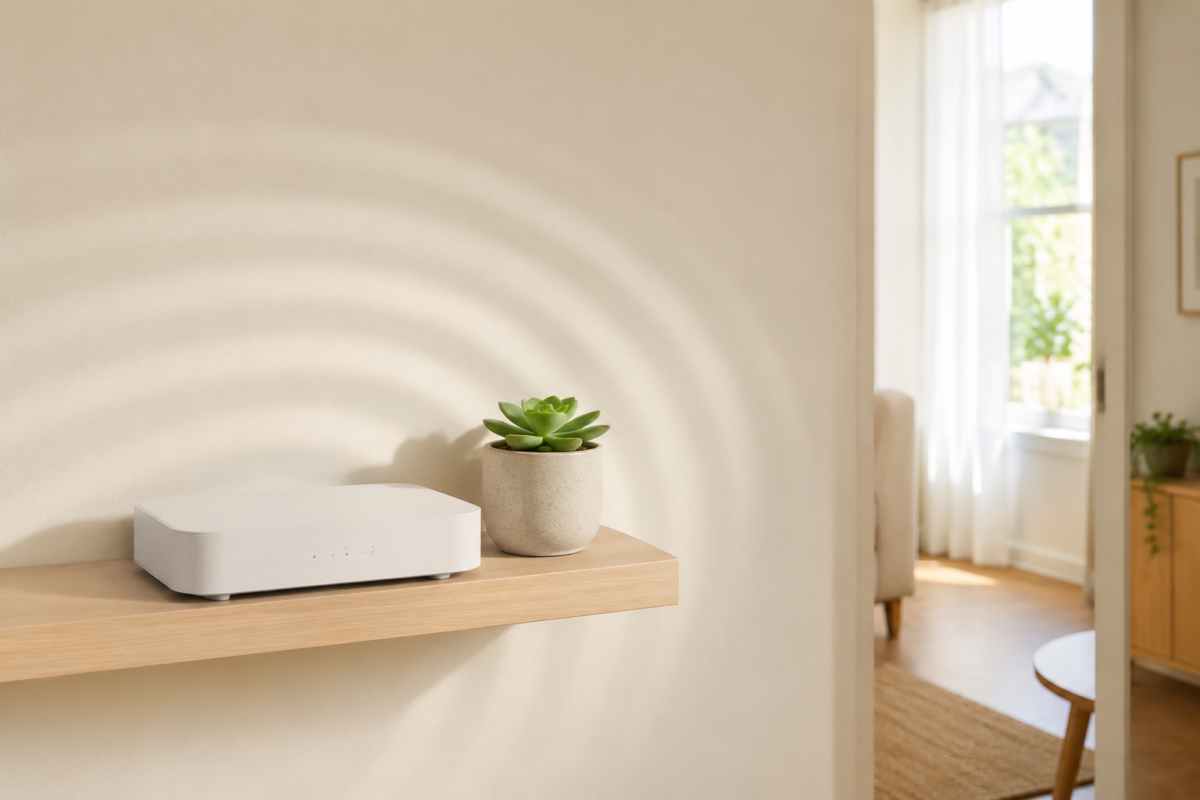
Your router should sit in an open, central spot at roughly desk height, not tucked inside a closet, a TV cabinet, or behind a stack of books. Walls, especially ones with plumbing or a lot of wiring behind them, weaken a wifi signal fast, and closed cabinets trap and reflect the signal instead of letting it spread through the apartment.
If your router currently lives wherever the cable line happens to enter your apartment, that’s worth reconsidering. Even in a studio, moving a router from a low, closed cabinet to an open shelf at chest height, ideally somewhere central rather than in a far corner, often fixes a weak signal at your desk without spending a dollar. <a href=”/work-from-home-small-space-guide”>If you’re still figuring out where your actual desk zone should go in a small apartment, this guide to setting up a full work-from-home space walks through picking that spot first.</a>
Keep the router away from the two biggest interference sources in most small kitchens and studios: microwaves and baby monitors or cordless phones running on the same 2.4GHz band. A call that drops every time someone reheats lunch two rooms over isn’t a coincidence.
Should your desk run on wifi or a wired connection?
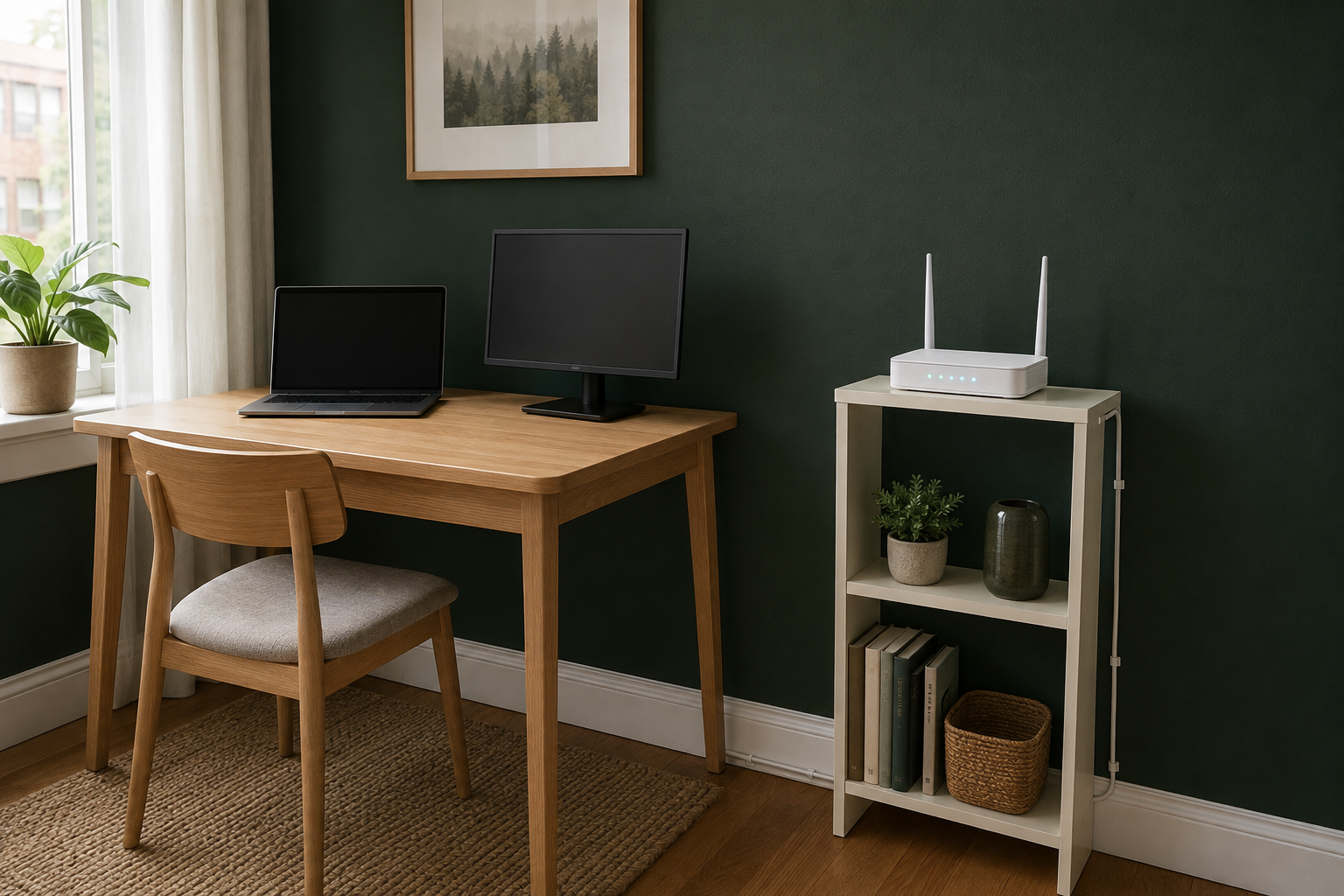
If your desk has a fixed spot, a single ethernet cable from your router to your laptop or a small desktop switch will outperform wifi every time, even a strong wifi signal, because a wired connection doesn’t compete for bandwidth or lose signal through walls. This matters most for video calls and screen sharing, both of which are far more sensitive to tiny interruptions than to raw speed.
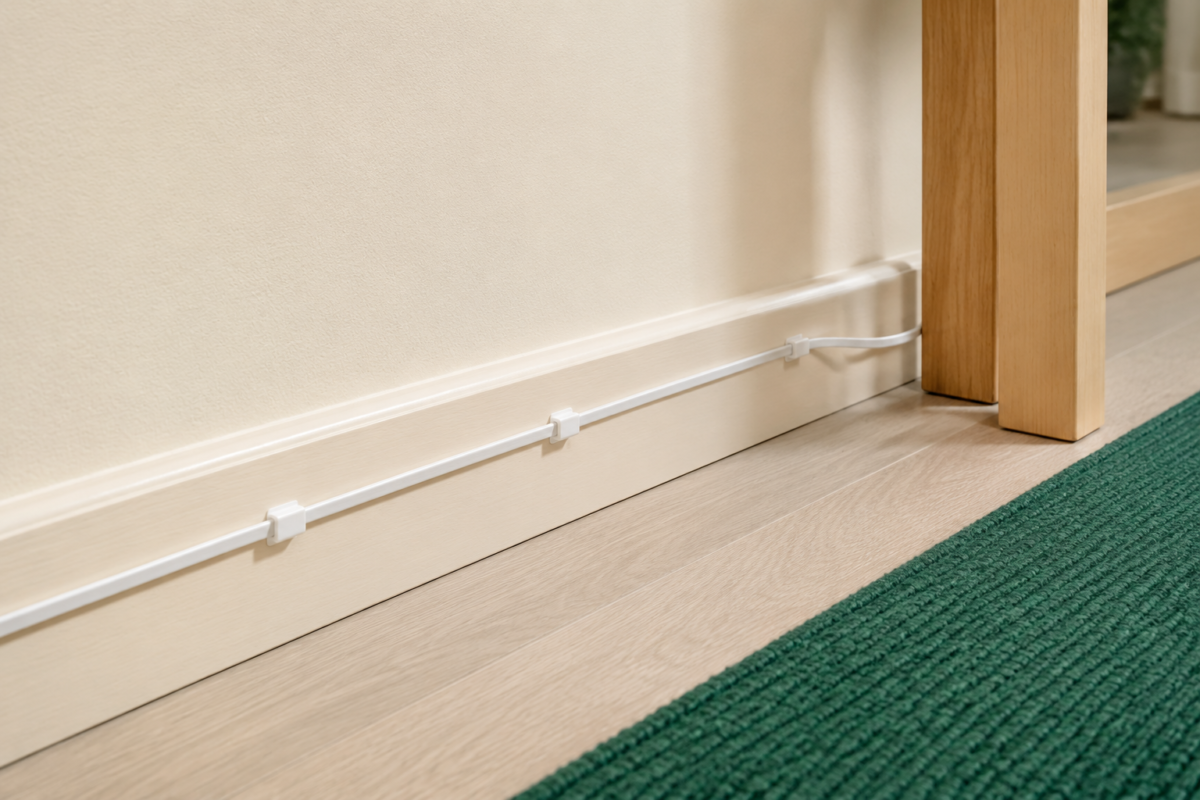
A flat ethernet cable, the kind meant to run under a rug or along a baseboard, is inexpensive and easy to route invisibly in a small apartment. You don’t need to drill anything or involve a landlord. Adhesive cable clips along a baseboard keep the line flat and out of the way, and a single cable from router to desk usually solves the exact freezing and lag problem that a wifi signal booster only partially fixes.
If running a cable genuinely isn’t possible in your layout, position your desk as close to the router as the apartment allows, and remove any large furniture or a full bookshelf directly between the two. Even a foot or two closer, with a clearer line of sight, makes a measurable difference.
How much internet speed do you actually need to work from home?
The FCC’s current broadband benchmark is 100 Mbps download and 20 Mbps upload, and that’s a reasonable floor for one person working from home with regular video calls, cloud file syncing, and normal household use layered on top. Upload speed matters more than most people realize, since it’s what your camera and microphone actually depend on during a call, and it’s usually the smaller, less-advertised number on your plan.
If you’re already well above that benchmark and still seeing problems, the fix probably isn’t a faster plan. It’s the router placement and wired-versus-wireless issues above. Paying for a higher-speed tier to fix a signal problem is a common, expensive mistake, since a faster plan can’t push more data through a wall or a microwave’s interference than a slower one already could.
What’s the fastest way to diagnose a wifi problem before a call?
Run a quick speed test from the exact spot your desk sits, not from across the room, and compare the result to what your plan promises. If the number at your desk is dramatically lower than the number your provider advertises, the problem is signal, not speed, and the router-placement and wired-connection fixes above are where to start.
Restarting your router genuinely does help more often than it should, since routers accumulate small errors over days of continuous use the same way any device does. A router restarted once a week, or set to reboot automatically overnight, avoids a meaningful share of random slowdowns before they ever reach a call.
What a reliable setup actually looks like once it’s in place
Once the router sits in an open spot, your desk runs on a single cable instead of a wireless connection competing with everyone else’s devices, and you’ve confirmed your plan is comfortably above the 100/20 benchmark, most dropped-call problems disappear without another purchase. The next time a call freezes, you’ll actually know where to look instead of guessing, and most weeks, there won’t be anything to look for at all.
FAQ
My internet plan is fast, so why do my video calls still freeze? Speed and reliability are different. A fast plan can still produce a weak or interrupted signal at your desk because of router placement, wall interference, or network congestion, none of which a speed test alone reveals.
Do I need a wifi extender in a small apartment? Usually not. Extenders solve range problems in larger homes, but in most small apartments and studios, moving the router to a more open, central spot solves the same problem for free.
Is a wired ethernet connection really better than wifi for video calls? Yes, especially for video and screen sharing. A wired connection doesn’t lose signal through walls or compete with other devices on the network, which makes it more consistent even when it’s not faster on paper.
What internet speed is actually enough for one person working from home? The FCC’s broadband benchmark of 100 Mbps download and 20 Mbps upload comfortably covers video calls, cloud tools, and normal household use for one remote worker.
Related Reading
- The Complete Guide to Working From Home in a Small Space — the full setup this tech fix fits into, from finding your desk zone to the furniture and storage around it.
- Cable Management Ideas That Actually Work in a Small Apartment — for routing an ethernet line the same way you’d route any other desk cable, without it looking like a project.
- Setting Up a Camera-Ready Background in Two Minutes or Less — once your connection stops dropping, this covers the other half of a good video call.
- Parent Category: Work-From-Home Setups
- Parent Hub: Home Office & Small Workspaces