Table of Contents
Most work-from-home discomfort doesn’t come from a bad chair or a cheap desk — it comes from a screen positioned at the wrong height and a chair that’s never been adjusted from its factory default. Both of these cost nothing or close to nothing to fix, and both matter more to how your body feels after eight hours than almost any furniture purchase.
This guide covers the two changes that matter most, the lighting setup that prevents eye strain, and the small comfort upgrades that work in any space — no dedicated room, no major purchase, and nothing that needs a landlord’s permission.
The Two Things That Matter Most
Screen height and chair support account for the majority of work-from-home discomfort, and both are fixable without buying new furniture. A monitor or laptop positioned too low forces the neck to bend forward for hours, and a chair left at its default settings rarely supports anyone’s actual posture correctly. Fix these two first, before spending on anything else.
The reason these two matter more than desk quality or decor: they’re the only two factors your body interacts with continuously, for the full length of a workday, regardless of what the rest of the room looks like.
Chair Ergonomics on a Budget
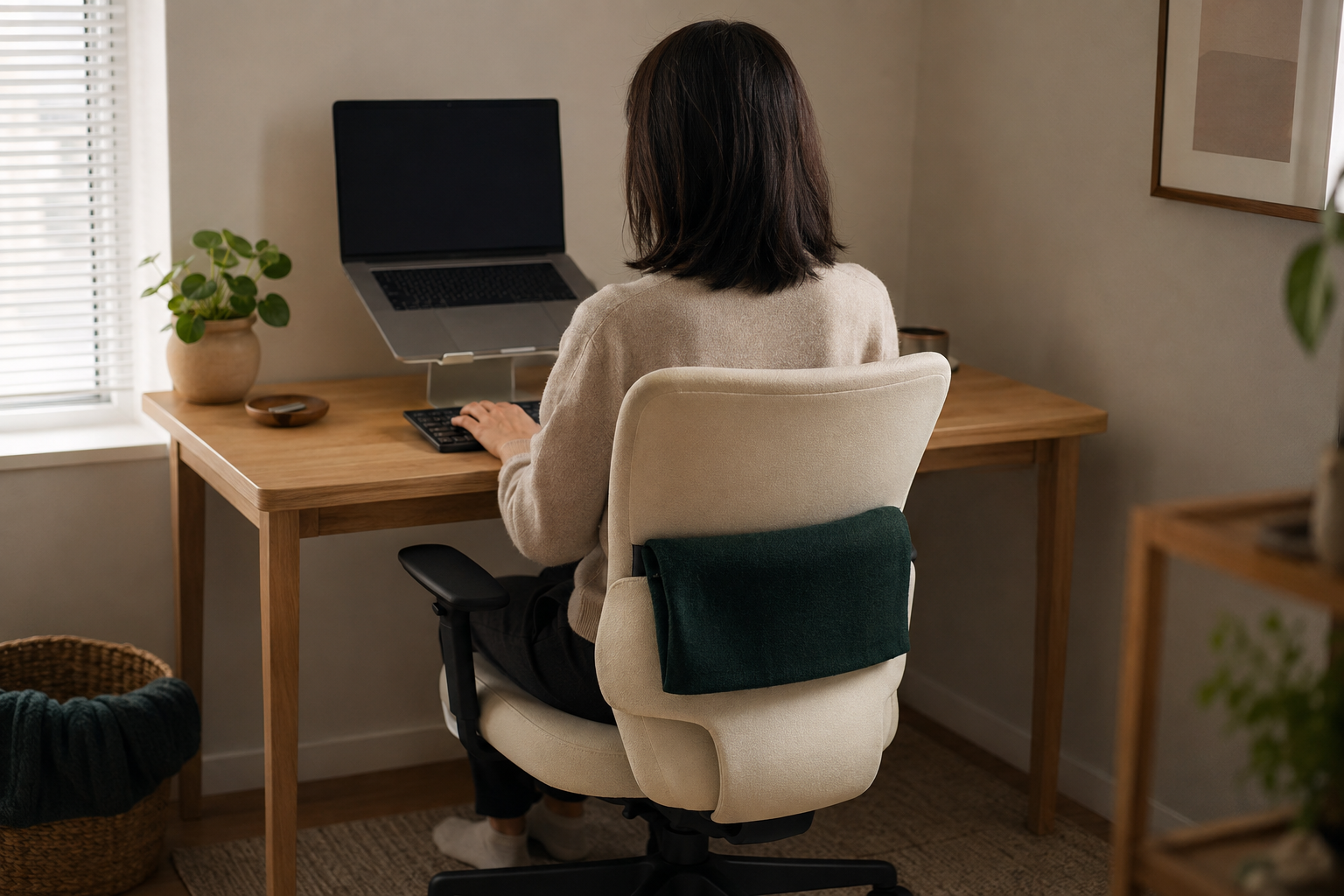
An adjustable chair set correctly for your body outperforms an expensive chair left at factory settings, and most of that adjustment costs nothing beyond a few minutes with the chair’s existing levers. Before assuming you need a new chair, confirm the one you have is actually adjusted for you.
Seat height: feet flat on the floor, knees at roughly a 90-degree angle. If your feet dangle or your knees sit higher than your hips, the seat is too high — a simple footrest (even a stack of books) fixes this for a few dollars if lowering the chair isn’t enough.
Lumbar support: the lower back should have contact with the chair, not a gap. If your chair has an adjustable lumbar knob, use it. If it doesn’t, a small rolled towel or a $15 lumbar cushion at the small of your back does the same job.
Armrests: shoulders relaxed, elbows close to a 90-degree bend. Armrests set too high force the shoulders up toward the ears over hours, which is a common, easily-fixed source of neck tension.
If your current chair genuinely can’t be adjusted into a reasonable position, that’s the point where a chair upgrade is worth prioritizing over almost any other home office purchase — covered in more depth in the Complete Small Home Office Guide.
Screen and Monitor Height
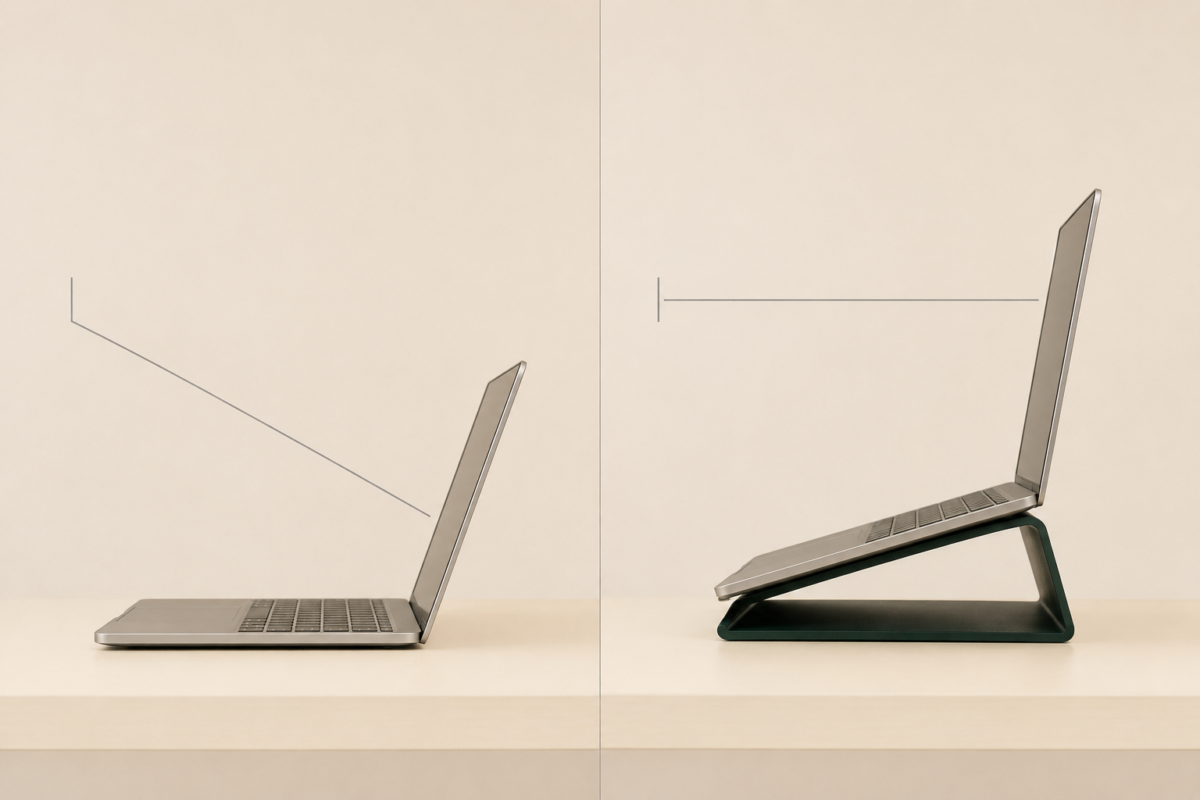
The top third of your screen should sit at eye level, not the center of the screen, and getting there usually costs under $20. A laptop used flat on a desk sits far too low for this by default, which is why laptop-only setups are one of the most common sources of neck strain in home offices.
A laptop stand or a stack of sturdy books raises the screen to the correct height instantly. Pair it with an external keyboard and mouse (since a raised laptop’s built-in keyboard becomes unusable at the new height), and the total cost for this fix is often less than $40 combined.
Lighting for Hours of Screen Work
Light positioned to avoid glare and screen reflection matters more for eye strain than overall brightness, and most home offices get this wrong by relying on a single overhead source that creates glare directly on the screen. A desk lamp placed to the side of the monitor, rather than behind or directly in front of it, lights the workspace without creating reflections you have to squint past.
Aim for warm-to-neutral color temperature (around 3000–4000K) rather than harsh daylight bulbs, which tend to increase eye fatigue over long sessions. If natural light is available, position the desk perpendicular to a window rather than facing it directly, so daylight doesn’t wash out the screen or create backlighting that makes you invisible on video calls.
Small Comfort Upgrades That Don’t Need a Dedicated Room
A handful of small, inexpensive upgrades meaningfully reduce physical strain regardless of how small or shared your workspace is, and none of them require a dedicated room or permanent installation.
- A wrist rest in front of the keyboard reduces strain on hands that type for hours, especially with a raised laptop setup where the keyboard sits slightly higher than a built-in one would.
- A standing break reminder — even a simple phone timer every 45–60 minutes — reduces the strain that comes from staying in one position for an entire workday, regardless of how well the chair is adjusted.
- A small under-desk footrest or a stack of books solves seat-height issues in setups where the chair itself can’t be lowered enough.
- A door or curtain that closes off the workspace visually at day’s end, even in a shared room, helps separate “work mode” from the rest of the space psychologically, which supports taking real breaks rather than half-working through the evening.
Building Ergonomics Into a Setup You Don’t Own
Every ergonomic fix in this guide works without a single permanent change to a rental — a laptop stand, an external keyboard, a lumbar cushion, and a repositioned lamp all move with you and leave no trace at move-out. This matters because the instinct to skip ergonomics “since it’s not my forever setup” is exactly backwards: none of the real fixes require ownership or permanence at all.
The only category worth a lease check is anything involving mounted monitor arms or wall-installed lighting, which a small number of renters do pursue for a fully hands-free monitor setup. For the vast majority of small-space work-from-home setups, none of that is necessary — a stand, a cushion, and a repositioned lamp solve the core problems just as effectively.
Ergonomics for a Setup You Share
If your desk or chair gets used by more than one person, build the ergonomic adjustments into a routine rather than assuming they’ll stay correct between users. A chair set perfectly for one person’s height is often meaningfully wrong for the next person to sit down, and small daily discomfort from an unadjusted chair adds up over a full workday just as much as never adjusting it at all.
A simple habit fixes this without any extra equipment: whoever sits down first each session takes fifteen seconds to check seat height and armrest position before starting work, the same way you’d adjust a car seat before driving. This matters more in shared desk-and-dining or desk-and-guest-room setups, where the “workspace” configuration changes throughout the day and ergonomics can otherwise become an afterthought that only gets addressed once discomfort has already set in.
Common Ergonomics Mistakes
The most common ergonomics mistake is assuming discomfort means the chair needs replacing, when the actual fix is usually adjustment, not a new purchase. A few other patterns worth avoiding:
- Working from a laptop at desk height with no stand. This single setup causes more reported neck and shoulder discomfort than almost any other factor covered in this guide, and it’s also the cheapest one to fix.
- Ignoring lighting until eye strain sets in. Glare and screen reflection build fatigue gradually, so the problem often isn’t noticed until headaches or eye strain are already frequent.
- Treating ergonomics as a one-time setup. A chair or desk that worked fine for one body doesn’t automatically work for another person sharing the same setup — reset the adjustments whenever the setup changes hands.
FAQ
Do I need an expensive ergonomic chair to work comfortably? Not usually. Correctly adjusting seat height, lumbar support, and armrests on an existing chair solves most discomfort. A chair upgrade is worth it only once you’ve confirmed the current chair genuinely can’t be adjusted into a workable position.
What’s the single cheapest ergonomic fix? Raising a laptop to eye height with a stand or a stack of books, paired with an external keyboard. This single change addresses the most common source of neck strain in home setups for well under $40.
How do I fix glare on my screen without buying new lighting? Reposition your desk so it’s perpendicular to windows rather than facing them directly, and move any desk lamp to the side of the monitor rather than behind or in front of it.
Is standing while working better than sitting? Neither position alone solves ergonomics — the real fix is avoiding staying in any single position for hours at a stretch. Regular short breaks matter more than whether you’re sitting or standing during the work itself.
Can I set up proper ergonomics without any permanent changes to my rental? Yes, for nearly everything in this guide. A laptop stand, external keyboard, lumbar cushion, and repositioned lamp are all fully portable and leave no trace at move-out.
Related Reading
- The Complete Small Home Office Guide — the full setup → organization → comfort sequence this guide fits into
- Small Home Office Setup Guide — fitting a real workspace into a corner, closet, or shared room
- Desk Organization Guide — systems that keep a small desk from becoming a catch-all
- Working From Home in a Small Space: Complete Guide — related Taims Space guide.
- The Tech Setup That Keeps a Small Home Office Reliable — related Taims Space guide.
- Setting Up a Camera-Ready Background — related Taims Space guide.
- A Start and End of Day Routine — related Taims Space guide.
- Complete Guide to Setting Up a Small Home Office — related Taims Space guide.
Category: Work-From-Home Setups Hub: /home-office-small-workspaces/
Reviewed by the Taims Space editorial team.